

ChatGPT for Speech to Text: How Good Is the Transcription in 2026?
Language is playing a bigger role than ever, not just in phone calls. Many people want to speak into their phones and have their thoughts automatically transcribed. It's a handy feature for messages, notes, or jotting down content while on the go. ChatGPT has changed a lot here: in 2026 it can not only take dictation but also transcribe uploaded audio files and record meetings on paid plans. So how well does it actually work, and where are the limits? Can AI really help with transcription? Let's find out.
ChatGPT and Voice Input: How It Works
If you use the ChatGPT app on iOS or Android, you can do more than just type, you can speak. Tap the microphone icon at the bottom of the screen to start talking, and your words appear as text directly in the chat.
Historically the app used Whisper, OpenAI's speech recognition model. OpenAI has since rolled out its next-generation gpt-4o-transcribe and gpt-4o-mini-transcribe models, which improve word error rate and handle accents, names and background noise better than the original Whisper. No need to upload anything or tweak settings for live dictation, just start speaking.
Can ChatGPT Transcribe Audio Files Now? (2026 Update)
This is the big change compared to a year ago. Many users used to ask: can I just hand ChatGPT a recording and get a transcript? In 2026 the answer is yes, on paid plans. There are now three routes to text:
- Live dictation — speak into the mic in the app and your words become text in real time.
- File upload — on paid plans, click the paperclip icon, attach an audio file (MP3, WAV, M4A) and ask ChatGPT to transcribe it. See our guide on turning audio to text for more.
- Record Mode — the ChatGPT desktop app can record a live meeting, transcribe it and summarize it. We tested it in our ChatGPT Record Mode review.
On the free plan only live dictation is available; file uploads and Record Mode require a paid plan.

The Limits You Still Hit
Being able to transcribe files does not make ChatGPT a full transcription platform. The practical limits matter:
- 25 MB file cap. A 45-minute WAV file can easily be several hundred megabytes, so long recordings have to be compressed or converted to MP3 first.
- Incomplete long files. Very long recordings can return partial or shortened transcripts rather than the full text.
- No speaker identification. ChatGPT returns one block of text and does not separate or label who said what.
- No timestamps. There are no time markers to navigate a recording.
- Record Mode is desktop-first. It runs in the desktop app on paid plans, with per-session length limits, and its availability is still expanding.
How Accurately Does ChatGPT Recognize Speech?
In a nutshell: quite well. ChatGPT generally understands spoken input very reliably, and the newer gpt-4o-transcribe models improve recognition of accents and noisy audio. Even if you speak quickly or throw in an occasional "um," your meaning usually comes through correctly.
The Strengths:
- Clear speech is recognized almost flawlessly.
- Works well with casual language and normal speaking speeds.
- Feels like talking to a person, natural and intuitive.
The Weaknesses:
- Struggles with heavy technical jargon or uncommon proper names.
- Noisy environments can reduce accuracy.
- Multiple speakers at once are merged into one unlabeled block.
ChatGPT vs Sally AI: Which Should You Use?
Both tools convert speech to text, but they are built for different jobs. Here is a side-by-side comparison:
| Feature | ChatGPT | Sally AI |
|---|---|---|
| Live dictation | Yes | Not the main focus |
| Upload audio files | Yes, paid plans, under 25 MB | Yes, built for long recordings |
| Record meetings automatically | Record Mode, desktop app only | Joins Zoom, Microsoft Teams, Google Meet and Webex automatically |
| Speaker identification | No, single text block | Yes |
| Timestamps | No | Yes |
| Summaries, tasks and decisions | Manual prompting | Generated automatically |
| Integrations | Limited | 5,000+ (Notion, Salesforce, Slack and more) |
| GDPR and data location | US-based processing | GDPR-compliant, hosted on German servers |
4 Tips for Better Voice Recognition with ChatGPT
Want the best results from ChatGPT's speech recognition? Follow these simple tips:
Speak Clearly
Avoid mumbling or rushing. Speak naturally and clearly, just like you would when explaining something to a friend. Use a steady pace with even articulation to help the AI catch every word accurately and minimize misunderstandings.
Use Short Sentences
Keep your thoughts concise and well-structured. Shorter sentences are not only easier for the AI to process and transcribe accurately, but they also reduce the risk of misinterpretation or missed words. Aim for clarity by breaking complex ideas into manageable parts.
Choose a Quiet Environment
Background noise, like cars passing by, music playing, or people chatting nearby, can significantly interfere with voice recognition accuracy. For the best results, choose a quiet room where you can speak clearly without interruptions or external sounds competing with your voice.
Pause Between Sentences
Give the AI time to process by adding brief pauses between sentences or ideas. These short breaks help the system identify the end of one thought and the beginning of another, which in turn avoids jumbled transcriptions and makes your message clearer and easier to follow. It also allows the AI to organize your input more accurately and deliver better overall results.
Why ChatGPT Still Isn't a Full Meeting Documentation Tool
ChatGPT can transcribe more than before, but for structured meeting documentation it still falls short:
No Speaker ID or Timestamps
Need to know who said what and when? ChatGPT doesn't provide speaker separation or time markers, which are essential for accurately capturing the flow of conversations in interviews, meetings, or any multi-speaker setting. Without these features, it becomes difficult to attribute statements to specific individuals or track the progression of the discussion over time.
No Automatic Meeting Attendance
ChatGPT does not dial into your calls for you. Record Mode captures audio on the device it runs on, but it cannot join a scheduled Zoom, Microsoft Teams, Google Meet or Webex call as a participant, so every recording still depends on someone starting it manually.
No Built-in Workflow or Export
Transcribed content stays inside the chat. There is no native export into your documentation, project or CRM tools, so summaries, tasks and decisions have to be copied and organized by hand.
Free Plan Restrictions
On the free plan you only get live dictation. File uploads and Record Mode are locked behind a paid subscription, and the 25 MB upload cap limits how much you can process at once even then.
Want More? Try a Specialized Tool Like Sally AI
If you regularly handle meetings, interviews, or team conversations, you need more than a mic in an app. That's where tools like Sally AI come in.
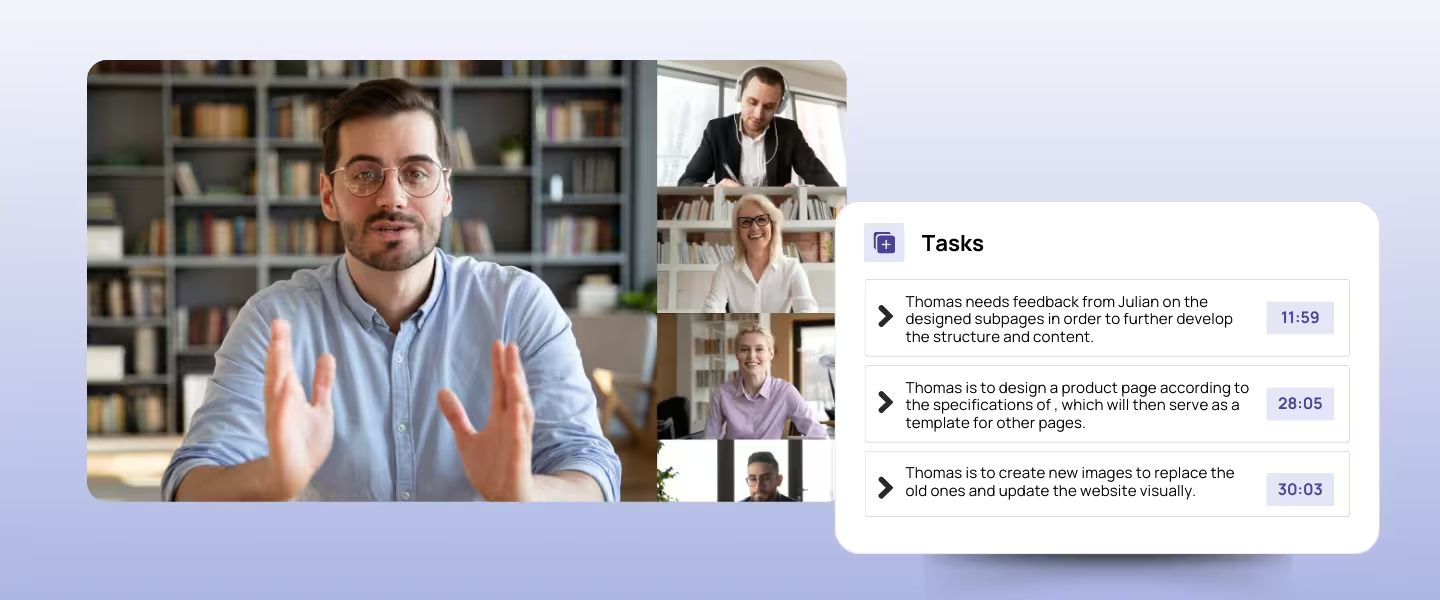
Sally is a transcription AI built for business needs. It can:
- Join Zoom, Microsoft Teams, Google Meet and Webex meetings automatically
- Record conversations and identify speakers
- Generate summaries, tasks, and decisions
- Record GDPR-compliant, hosted on German servers
- Integrate with 8,000+ tools like Notion, Salesforce, or Slack
That is completely different from ChatGPT. Both have their place:
- Use ChatGPT for quick dictation or the occasional audio file.
- Use Sally AI for structured documentation and full transcription workflows.
Conclusion: ChatGPT Is Great for Dictation, Sally Is Built for Meetings
If you just want to speak instead of type, or transcribe the occasional short file, the ChatGPT app is a great tool: fast, simple, and reliable for short entries and questions.
But if your goal is to record, structure, and export multi-speaker conversations, a dedicated solution like Sally AI is the smarter choice.
TL;DR:
- Want to talk instead of typing, or transcribe a short file? Use ChatGPT.
- Need full meeting transcripts with speaker ID, summaries, action items, and integrations? Use Sally AI. Try Sally AI for free here and see how it transforms your workflow.


